In today’s rapidly evolving digital landscape, securing network connections has become more critical than ever before. One effective approach to bolstering security is by implementing a double authentication mechanism on SSL VPNs. In this blog post, we will explore the advantages of employing FortiToken Mobile as a second authentication factor. Additionally, we will address the challenges related to the “Internal Error” message that might occur upon adding the FortiToken Mobile license to the FortiGate Firewall and provide troubleshooting steps with the necessary commands.
Troubleshooting the “Internal Error” Message: Upon adding a FortiToken Mobile license to the FortiGate Firewall, administrators may encounter an “Internal Error” message,

which can be perplexing to troubleshoot. To diagnose and resolve this issue, Fortinet requests to verify the connectivity to the FortiToken Cloud server before proceeding.
 Forti100F-CSP1 # execute ping directregistration.fortinet.com
 PING directregistration.fortinet.com (63.137.229.3): 56 data bytes
 64 bytes from 63.137.229.3: icmp_seq=0 ttl=43 time=139.1 ms
 64 bytes from 63.137.229.3: icmp_seq=1 ttl=43 time=138.3 ms
As we can observe, the remote server is reachable, and DNS resolving is functioning correctly.
The next step involves activating some debug options:
diag debug console timestamp enable
diag debug app forticldd -1
diag debug app alert -1
diag fortitoken debug enable
diag debug enable
Now, we can proceed to check the generated output to investigate further.
ftm_cfg_import_license[329]:import license EFTMXXXXXXXXXXX
 ftm_fc_comm_connect[55]:ftm TCPS connected.ftm_fc_comm_send_request[117]:send packet success.
 POST /SoftToken/Provisioning.asmx/Process HTTP/1.1
 Accept: application/json, text/javascript, /, q=0.01
 Content-Type: application/json;charset=utf-8
 X-Requested-With: XMLHttpRequest
 Accept-Language: en-us
 Accept-Encoding: gzip, deflate
 User-Agent: Mozilla/5.0 (compatible; MSIE 9.0; Windows NT 6.1; WOW64; Trident/5.0)
 Host: 208.91.113.53:443
 Content-Length: 297
 Connection: Keep-Alive
 Cache-Control: no-cache
 { "d": { "__type": "SoftToken.ActivationLicenseRequest", "__version": "4", "license_activation_code": "EFTMXXXXXXXXXXX", "serial_number": "FG100XXXXXXXXXX", "__devic
 e_version": "7.0", "__device_build": "2360", "__clustered_sns": [ { "sn": "FG100XXXXXXXXXX" }, { "sn": "FG100YYYYYYYYYYY" } ] } }
 ftm_fc_comm_recv_response[266]:receive packet success.
 {"d":{"__type":"SoftToken.ActivationLicenseResponse","__version":"4","serial_number":"FG100XXXXXXXXXX","__device_version":"7.0","__device_build":"2360","__clustered_s
 ns":[{"sn":"FG100YYYYYYYYYYY","error":"Product is not registered"},{"sn":"FG100XXXXXXXXXX","error":null}],"license_activation_code":"EFTMXXXXXXXXXXX","license":"","t
 okens":null,"result":0,"error":{"error_code":16,"error_message":"forticare license activation code invalid"}}}
 ftm_fc_command[615]:received error from forticare [-7566]
The output shows that the FortiGuard server is receiving and processing the FortiToken activation key correctly.
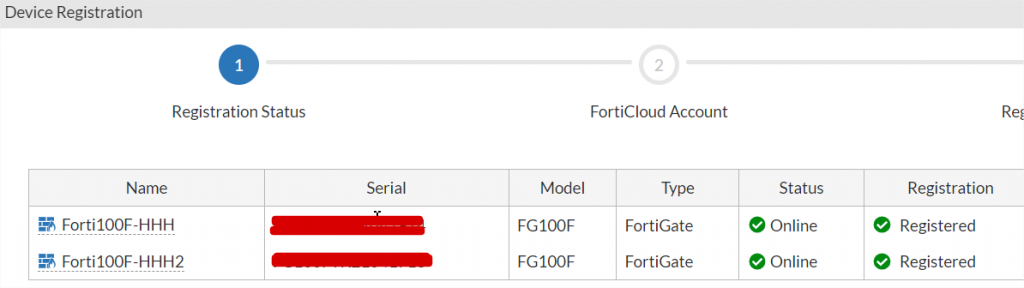
It tries to register the activation key for both FortiGate devices since they are in a cluster. However, the error seems to be caused by one of the firewalls not being registered on the Fortinet cloud, which appears to be the main reason for the issue.
The second node in the cluster was found to be unregistered on the Fortinet Cloud. Regardless of whether you have a FortiCare contract, it is essential to register all equipment on the FortiGate Cloud. Please ensure that both nodes are registered to avoid any issues.
Additionally, please be aware that the FortiToken license is linked to the primary unit’s serial number. Fortunately, due to the High Availability (HA) configuration, all tokens are automatically replicated to the second node, ensuring a seamless user experience.